
How do I pair Bluetooth® in a 2026 Mitsubishi Outlander around Wilmington, DE?
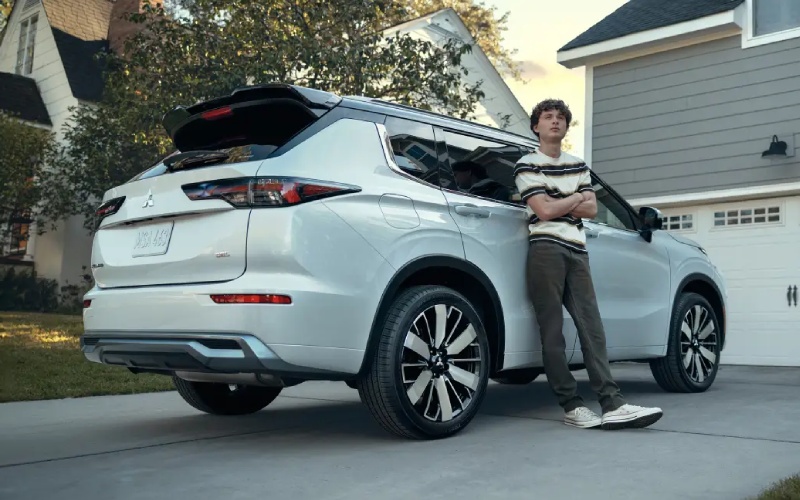
Sheridan Mitsubishi – How do I pair Bluetooth® in a 2026 Mitsubishi Outlander around Wilmington, DE?
Pairing your phone to the 2026 Mitsubishi Outlander is a small setup step that pays off every mile around Wilmington, DE, whether you are merging onto I-95, navigating Market Street in the city, or heading to Brandywine Park for the weekend. With Wireless Apple CarPlay® and Wireless Google Android Auto® standard, plus a clear 12.3″ Smartphone-link Display Audio with Navigation, the Outlander makes hands-free calls, turn-by-turn directions, and streaming audio feel seamless. Below, our team at Sheridan Mitsubishi explains exactly how to connect via Bluetooth®, how to enable wireless smartphone integration, and what to check if things do not link up on the first try.
Why this pairing matters for Wilmington, DE drivers
Local commutes can change quickly around Wilmington—think lane shifts on I-495 or construction on Concord Pike—so being able to say “call home,” follow on-screen directions, and control your playlists without touching your phone reduces distraction and keeps your focus where it belongs. The Outlander’s steering-wheel controls, voice recognition, and available Dynamic Sound Yamaha® systems deliver clear audio for calls and music, while the cabin’s thoughtful layout helps you get connected once and stay connected.
Before you start, park safely at home in Trolley Square, in your office lot near the Riverfront, or curbside off Pennsylvania Avenue. For safety and compliance with Delaware’s hands-free law, do your first connection while the vehicle is stationary.
What you need before pairing
Most smartphones running current iOS or Android versions will pair with the Outlander’s multimedia system. Take a moment to check these basics so setup goes smoothly.
- Phone is charged and unlocked
- Bluetooth® is turned on in phone settings
- Any old car profiles you no longer use are deleted from your phone
- Vehicle is in Park with the engine running
- The 12.3″ display is on and showing the home screen
With those items ready, you can connect in just a couple of minutes.
Step-by-step: Pairing Bluetooth® for calls and audio
These steps establish a core Bluetooth® connection for hands-free calling and audio streaming. You can do this with iPhone or Android—both follow nearly the same flow.
- On the Outlander screen, open the settings menu
- Select the Bluetooth or Phone option to add a new device
- On your phone, open Bluetooth settings and start a device scan
- Tap the vehicle name that appears on your phone display
- Confirm the pairing code matches on the phone and vehicle screen
- Allow permissions so your contacts and messages can sync
- Wait for the confirmation on the Outlander screen that pairing is complete
Once paired, you can place or receive calls using the steering-wheel buttons, stream music or podcasts, and see caller information on the 12.3″ display. The system will reconnect automatically the next time you start the Outlander with that phone in range.
Enable Wireless Apple CarPlay® or Wireless Google Android Auto®
Bluetooth® pairing sets the foundation; Wireless Apple CarPlay® and Wireless Google Android Auto® add your favorite apps for maps, messaging, and media—no cable required. The Outlander supports these wirelessly across the lineup, making daily drives from Wilmington to New Castle or Newark even more convenient.
For iPhone:
- Make sure the initial Bluetooth® pairing is complete
- On the Outlander screen, select the Apple CarPlay icon or prompts
- On your iPhone, confirm that you want to use CarPlay wirelessly
- Accept any required prompts for contacts and notifications
- Wait for the CarPlay home screen to appear on the vehicle display
For Android phone:
- Confirm Bluetooth® pairing is complete
- Open the Android Auto app or follow on-screen prompts if it is built in
- Approve wireless projection on your phone
- Allow requested permissions when prompted
- Wait for Android Auto tiles to appear on the Outlander screen
After setup, Wireless Apple CarPlay® or Wireless Google Android Auto® should connect automatically. If you ever prefer a wired session—perhaps to charge faster—simply plug into a USB-C port and follow the same app prompts.
Quick tips for Wilmington-area daily life
These practical pointers come from helping our neighbors connect phones daily at Sheridan Mitsubishi. They can save time and prevent common hiccups.
- Start the first pairing with only one phone in the cabin
- If your phone does not appear, toggle Bluetooth® off and back on
- Delete an old Outlander or generic car profile if your phone is full
- Keep the driver’s door closed during setup to avoid auto-lock interruptions
- If you use multiple phones, set a primary phone in the Outlander settings
- For the clearest calls, close the sunroof and windows on faster I-95 segments
If you drive into New Jersey for work or to visit family, the system works just the same across the river—no need to re-pair or change settings as you cross state lines.
Troubleshooting and how our team can help
If CarPlay or Android Auto does not load after Bluetooth® pairing, check the app permissions on your phone and make sure you accepted the prompts on both screens. A quick phone restart can also clear lingering connection flags. If you still do not see your apps, try deleting the device from the vehicle and re-pairing from scratch. Be sure you are parked near Wilmington Riverfront or in your driveway so you can take the minute or two needed to complete the process without distraction.
For persistent issues—like a phone that refuses to reconnect automatically or text messages not appearing—our specialists can walk through advanced settings, verify software versions, and demonstrate voice-command best practices. We pair phones for guests every day and are happy to get yours working exactly the way you want it.
Make the most of your connected Outlander
Once you are paired, a few Outlander features enhance the experience. Speed Compensated Volume helps calls and music stay clear as road noise changes, and steering-wheel voice control lets you place calls or request directions without taking your hands off the wheel. If you choose the Dynamic Sound Yamaha® Ultimate system, you will also benefit from features like Rain Compensated Volume that keep audio crisp during downpours on Kennett Pike or Naamans Road.
It is also helpful to know that Bluetooth® and Wireless Apple CarPlay® or Wireless Google Android Auto® are separate from Mitsubishi Connect. Mitsubishi Connect with Safeguard And Remote Services includes app-based features like remote start and vehicle status and comes with a 24-month trial on the Outlander. You do not need Mitsubishi Connect to pair Bluetooth®, but enrolling in the app adds another layer of convenience to your daily routine.
Finally, if you plan to sell or trade in your vehicle, you can remove your phone from the Bluetooth® device list in the Outlander settings and clear personal data. Do the same on your phone by deleting the vehicle profile. If you have a service appointment at our New Castle facility, we can help you double-check that everything is cleared.
Frequently Asked Questions:
Can I pair more than one phone to my 2026 Mitsubishi Outlander?
Yes, you can store multiple devices. In the Outlander’s Bluetooth® settings, you can set a primary device so the system knows which phone to connect to first when you start the vehicle.
Do I need a USB cable for Apple CarPlay® or Android Auto™ in the 2026 Outlander?
No. Wireless Apple CarPlay® and Wireless Google Android Auto® are supported. You can still plug in via USB-C if you prefer a wired session or want faster charging.
Why are my text messages not showing up on the Outlander screen?
On your phone, check that message access is allowed for your vehicle’s Bluetooth® profile. Also verify notification settings on your device. If you previously denied a prompt, delete the vehicle profile on your phone and re-pair so you can accept the permissions.
How do I improve call clarity on highway drives around Wilmington?
Ensure windows are closed, set the cabin fan to a moderate level, and speak at a normal volume. The Outlander’s microphone placement and audio processing help, and features like Speed Compensated Volume can keep voices balanced as speeds change.
Is Mitsubishi Connect required to pair Bluetooth® or use CarPlay and Android Auto?
No. Bluetooth® and wireless smartphone integration work independently. Mitsubishi Connect with Safeguard And Remote Services is an optional app-based suite and includes a 24-month trial on the Outlander when enrolled.
For shoppers near Wilmington, DE, pairing your phone to the 2026 Mitsubishi Outlander is a quick setup that makes every drive easier—whether you are commuting on I-95, running to Christiana for errands, or exploring Alapocas Run State Park. If you would like a hand, our team at Sheridan Mitsubishi will pair your device, customize settings, and demonstrate voice commands so you leave fully connected and confident.
Visit us at 100 S. Dupont Hwy in New Castle—just minutes from Wilmington—for a personalized walkthrough of the Outlander’s connectivity, a tour of trims and available audio systems, and a test drive. We are here to help you get the most from your Outlander from day one.
0 comment(s) so far on How do I pair Bluetooth® in a 2026 Mitsubishi Outlander around Wilmington, DE?